The Budget View
Some cool recent tweaks
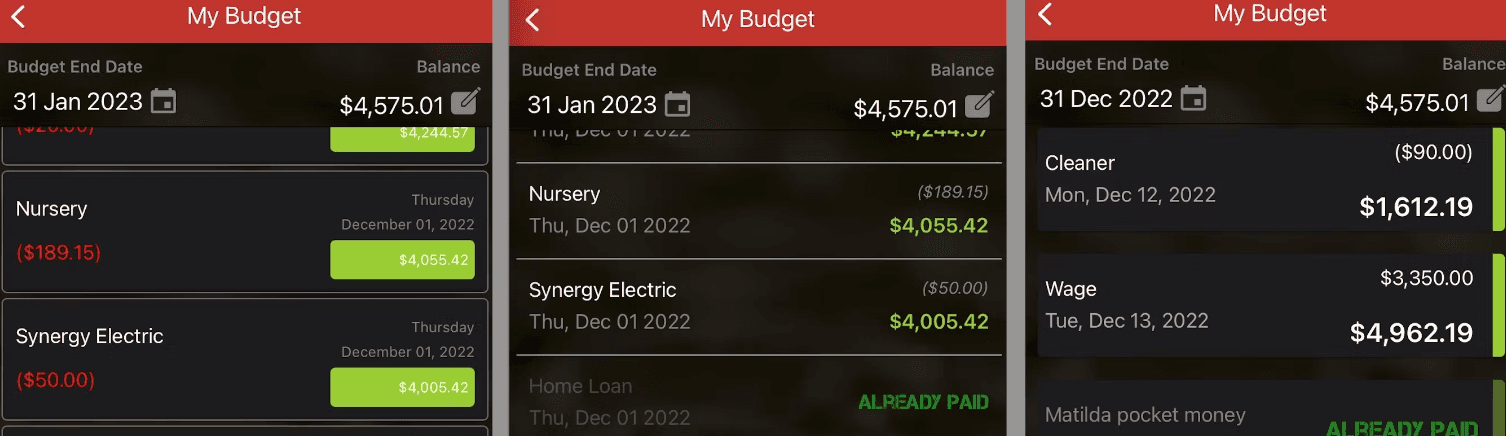
The most important part of the Budget Planner App is the Budget View.
Layout
In our app, we focus on what your bank's balance is going to be going forward. So enter your current balance and we will plot how your bank's balance will change over the next few weeks and months so that you can make sure that you stay in the black!

Above are the three different layouts that our pro users can choose from. Decide which one you prefer. Pro users can change their view at any time from the Settings tab.
Today's Payments
For a while, any payments that were due on the date you updated your balance were left in the budget for you - and if they had been paid then you had to mark them as paid manually.
As part of a recent change (v5.4), we updated this so any payments due today were no longer visible. The feedback we got over this was one of surprise. A lot of our users relied on being able to change these payments and found that they were unable - so we tweaked this. So, in v5.5 and later, any payments due today (the day you update the bank balance) are left in the budget but marked as paid. If they haven't been paid you can just edit them and set them back to Unpaid.
Editing Budget Items
When you are in the budget view you can edit any budget entry, just by tapping on it.

When you tap on a Budget Entry you will get to the screen above. Here you are only amending this occurrence of the payment. So in the example above we are editing the nursery payment due on 12th December - we are not updating all Nursery Payments.
From here we can change the date that the payment will be made, along with the amount or even the description. Once we're happy with the changes - we can just hit the save button at the top, and our changes are saved and the budget updated! If we change our minds we can press cancel.
We also have the option to mark payments as paid (or unpaid if they are currently paid.). Just tap the button at the bottom!
Updating Bank Balance
We can update the bank balance from right here within the budget screen.

At the top of the budget screen is the edit button (circled in red above). Tap this:

and you'll see the bank details, like above.
Just update the balance and then press the save button (highlighted) and your current balance will be updated and your budget refreshed.
Budget End Date
You can change how long your budget runs too. To do this, tap on the Calendar icon

and you'll get the options for your budget lengths

From here you are presented with the next three months, tap one and your budget will run to the end of that month.
Secret Budget Length Option
Most people don't realise that there is a secret option for the budget length. If you tap the date (highlighted below) at the bottom of the selections:

You'll get the option to specify whatever date you want - months or even years in advance!

as you can see, selecting a date here updates your budget to run to that date - no matter how far in the future it is
Hopefully this has been a useful guide to using the most important screen in the app, if you ever have any feedback or suggestions then let us know via the in-app Contact Us option:

Thanks :-)